How to Resize an Animated GIF Without Losing Frames
An animated GIF can be the right size for one page and too large for another. You might need a narrower animation for a website, a smaller image for a message, or specific pixel dimensions for a project. The important question is whether resizing will affect the animation itself.
With the free Toolysite GIF Resizer, you can change an animated GIF's width and height while keeping its frames and animation. You can enter exact dimensions or choose a percentage. The tool runs in your browser, and your file stays on your device.
We also tested how resizing affected a small animated GIF. The results below show the actual dimensions and file sizes we measured, including what happened when we enlarged it.
How to Resize an Animated GIF
You can resize a GIF using exact pixel dimensions or one of the available percentage presets. The right choice depends on whether you have a specific size requirement or simply want to make the animation smaller.
- Open the tool. Visit the GIF Resizer in your browser.
- Select your GIF. Choose the animated GIF you want to resize. The tool accepts files up to 100 MB each.
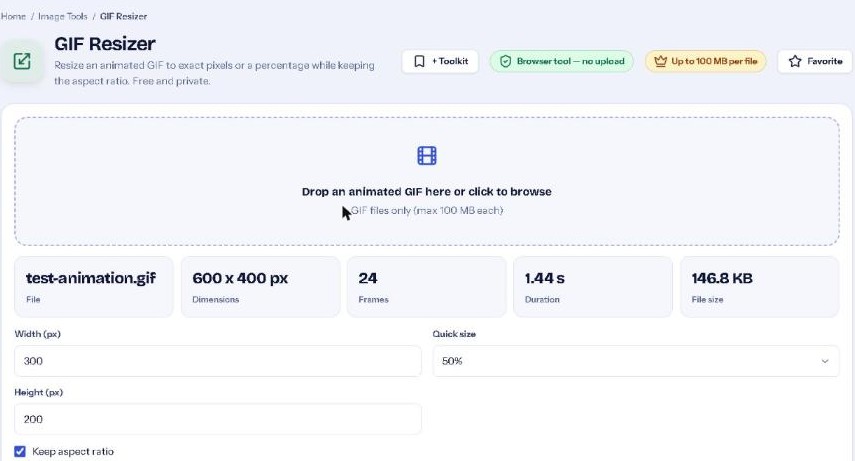
- Check the original details. Review the dimensions, frame count, duration, and file size displayed by the tool.
- Choose a resizing method. Enter a specific width and height in pixels, or use a quick size: 200%, 150%, 75%, 50%, or 25%.
- Consider keeping the aspect ratio. Enable "Keep aspect ratio" when you want the width and height to remain proportional. This helps avoid stretching or squashing the image.
- Resize the animation. Apply your chosen dimensions and inspect the result. The panel shows the new dimensions, frame count and file size, plus how much smaller or larger the file became. Check them before downloading.
- Download the result. Once the dimensions are right, save the resized GIF.
If you know the required dimensions, use the pixel fields. If you are experimenting with a smaller version, start with 75% or 50% and review the result. There is no need to guess what happened to the animation: the before-and-after information lets you compare the measurements.
Our Test: How Much Did the GIF Size Change?
We created a simple synthetic animation specifically for this guide and resized it using Toolysite. The original was 600 × 400 pixels, contained 24 frames, lasted 1.44 seconds, and occupied 146.8 KB.
We tested four different settings. These are the results we recorded:
| Resize setting | Dimensions | File size | Size change |
|---|---|---|---|
| Original | 600 × 400 px | 146.8 KB | Baseline |
| 75% | 450 × 300 px | 57.5 KB | 61% smaller |
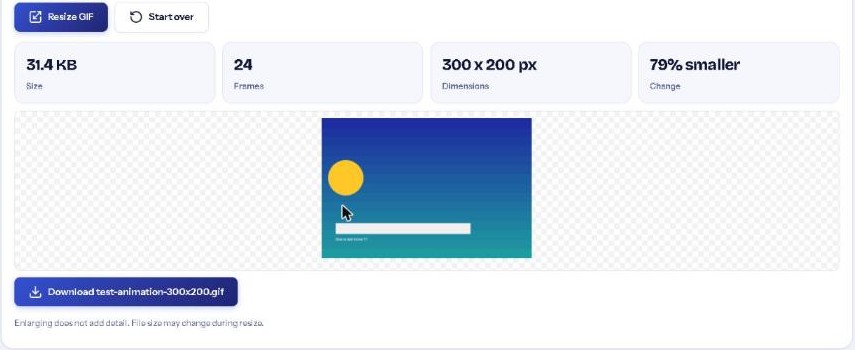
| 50% | 300 × 200 px | 31.4 KB | 79% smaller |
| 25% | 150 × 100 px | 22.4 KB | 85% smaller |
| 150% | 900 × 600 px | 157.3 KB | 7% larger |
All 24 frames were retained in every resized version. In particular, reducing the dimensions to 50% changed the file from 146.8 KB to 31.4 KB, a reduction of approximately 79%.
These numbers come from one simple synthetic animation, not a representative collection of GIFs. Real animations containing photographs, detailed backgrounds, or many colours can behave differently. A 50% resize will not necessarily reduce every GIF's file size by 79%.
The 150% test also illustrates an important limitation: the image became larger in pixel dimensions and file size, but enlarging a GIF does not add new visual detail.
Choosing Between Pixels and Percentages
Use exact pixels when a design, website component, or other requirement specifies a particular width and height. For example, if you need a 300 × 200 pixel animation, entering those dimensions is more direct than experimenting with presets.
Percentage resizing is useful when you want a proportionally smaller or larger version. A 75% setting reduces both dimensions to three-quarters of their original values when the aspect ratio is preserved.
Keeping the aspect ratio is generally the safer choice unless your destination specifically requires different proportions. If the proportions change, the animation may look stretched.
What If Your GIF Is Still Too Large?
Reducing dimensions is one way to reduce a GIF's file size, but it is not the only approach. GIF size also depends on factors such as the number of frames and colours.
If the resized animation is still too large, try the GIF Compressor. Toolysite's GIF Resizer FAQ recommends using it after resizing to reduce colours and frames. You can also explore the GIF Optimizer.
For a longer animated clip, consider whether you actually need the GIF format. MP4 or WebM video is usually much smaller than GIF for long clips, although the appropriate format depends on where the content will be used.
If you are starting with a video rather than an existing GIF, the Video to GIF tool is another option. For ordinary still images, use the Image Resizer instead.
Limits Worth Knowing
- Resizing does not improve detail. Making a GIF larger increases its dimensions, not the amount of detail in the source image.
- File size reductions vary. The percentages measured in our test should not be treated as guaranteed compression results.
- Frames are preserved. The GIF Resizer keeps the animation's frames. If your goal is to reduce the number of frames, use an appropriate compression workflow instead.
- There is a file limit. Each input file can be up to 100 MB.
Frequently Asked Questions
Can I resize a GIF without losing its animation?
Yes. Toolysite GIF Resizer preserves the animated GIF's frames and animation while changing its dimensions. In our test, all 24 frames remained present at 75%, 50%, 25%, and 150% of the original dimensions.
Does making a GIF smaller always reduce its file size?
Not by a fixed amount. Our 600 × 400 pixel test animation became 79% smaller in file size when resized to 300 × 200 pixels. Results depend on the content of the GIF, so check the actual output rather than assuming a particular reduction.
Can I set an exact width and height for an animated GIF?
Yes. You can enter the width and height in pixels instead of using a percentage preset. Use the "Keep aspect ratio" option when you want to preserve the animation's original proportions.
Do I need to upload my GIF to a server?
No. Toolysite GIF Resizer runs in your browser, and the file stays on your device. You can resize files up to 100 MB each.
Final Thoughts
Start with the dimensions your project actually needs, keep the aspect ratio unless there is a reason to change it, and check the result before downloading. Smaller dimensions can make a meaningful difference to file size, as our test showed, but the outcome will vary from one animation to another.
For a quick adjustment or an exact pixel size, open Toolysite GIF Resizer and compare the measurements before and after resizing.