How to Pick a Colour From a Photo and Build a Matching Palette
A client sends over a photo of their shop sign and says "use that exact blue everywhere on the new site." That sounds simple until you try to match it by eye in a design tool and end up with three different blues across three different screens. The fix is not guesswork, it is reading the actual pixel value.
I opened the free Color Picker on Toolysite, uploaded a test image and clicked around to see exactly what it gives back and where it falls short.
What the tool actually does
This is an image colour picker, not a screen-wide eyedropper. You upload a photo or screenshot, click anywhere on it, and the tool reads that single pixel and reports it as HEX, RGB and HSL at the same time. It will not read colours outside the uploaded image (your browser chrome, another app, your desktop wallpaper), because it only has access to the image file you gave it. That is worth knowing before you plan a workflow around it.
Reading a colour: the steps
- Open the Color Picker and upload the photo, screenshot or logo file.
- Click the exact spot you care about. A flat, evenly lit area gives the cleanest reading; a spot with a reflection or a shadow edge will not.
- Read off the HEX code plus the matching RGB and HSL values, shown together.
- If you need several colours from the same image, switch to the Photo Color Picker with Magnifier, which keeps a running palette of every colour you click instead of overwriting the last one.
Checking the maths by hand
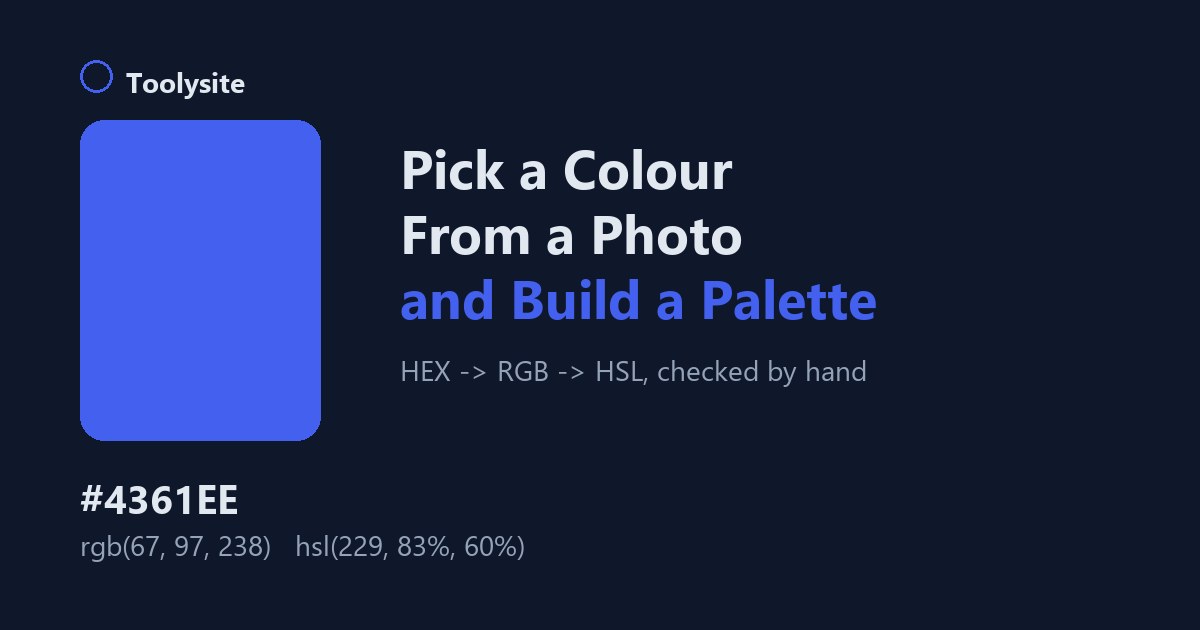
I didn't want to just trust a readout without knowing where the numbers come from, so I picked Toolysite's own button blue, #4361ee, and converted it by hand to confirm the logic behind HEX, RGB and HSL is standard colour maths, not something proprietary.
| Format | Value |
|---|---|
| HEX | #4361ee |
| RGB | rgb(67, 97, 238) |
| HSL | hsl(229, 83%, 60%) |
HEX to RGB is just splitting the code into three pairs of hexadecimal digits: 43, 61 and ee convert to 67, 97 and 238 in base 10. HSL takes more steps (finding the lightness as the midpoint of the highest and lowest channel, then the saturation and hue from the spread between channels), but it lands in the same hue family every time: a blue with the red channel lowest and the blue channel highest will always sit somewhere in the 210-250 degree range on the hue wheel, which is exactly where 229 lands.
Why the colour can look slightly different from the original
This is a limitation worth repeating because it matches what I'd expect from any browser-based picker: JPG compression and differing screen colour profiles can shift pixel colours slightly, so a colour picked from a heavily compressed JPG photo of a sign is an estimate, not a certified match to the paint or ink used in real life. For anything client-facing, pick from a PNG where possible, from a large flat area rather than an edge, and treat the result as "close enough to build from" rather than a legal colour reference.
Turning one colour into a usable palette
A single HEX code is rarely the end of the job; a site needs several colours that work together. Paste the HEX you just picked into the Color Palette Generator and it will build options around it: a complementary pairing (the colour directly opposite on the colour wheel, for strong contrast on buttons or calls to action) or an analogous set (neighbouring colours on the wheel, which read as calm and cohesive for backgrounds and secondary elements). It can also output the set as ready-to-use CSS custom properties, which you paste straight into your stylesheet's :root selector and reference everywhere with var(--name) instead of hardcoding hex codes in a dozen places.
A sensible starting point most designers settle on is one main colour, one accent and a small set of neutrals; more than that and the palette usually stops looking deliberate. Colour combinations themselves aren't owned by anyone, so whatever the generator gives you is fine to use in a commercial project.
Questions people ask
Can I pick a colour straight from my screen instead of uploading an image?
Not with this tool. It reads pixels from an image you upload, not a live eyedropper over your whole desktop. If you need a colour from something on screen, take a screenshot first and upload that.
Why did two clicks on what looked like the same colour give slightly different HEX codes?
Almost always JPG compression noise or a soft shadow or gradient you didn't notice by eye. Zoom in and pick from the flattest, most evenly lit pixel you can find.
Does the palette generator need the exact HEX, or can I just describe the colour?
It needs the actual HEX (or a close one); there is no "describe it in words" mode, which is exactly why picking the precise value first, rather than eyeballing it, matters.
Is RGB or HSL more useful for web design?
Neither is "more correct", they are the same colour in two systems. HSL is often easier to reason about when you want to make something lighter, darker or more muted, because lightness and saturation are separate numbers you can nudge; RGB is what most code and design tools store natively.
One honest limit
I checked the HEX-to-RGB-to-HSL maths by hand against a known value and it matched, which tells me the conversion logic is sound. What I could not fully verify in a quick test is colour accuracy across different source images and monitors, since that depends on the photo's own compression and your screen's colour profile, not on the tool. Treat picked colours from photos as a strong starting point, and confirm anything brand-critical against an official colour reference before it goes to print.