Crop an Image into a Circle Online (Free, Transparent PNG)
Round profile pictures are everywhere, and whoever builds the page decides which part of your photo gets cut off. If your face sits a little to the left, you end up with half an ear and a lot of wall. If you want a round profile picture that looks right, crop the photo into a circle yourself before you upload it, and you decide what stays.
This post walks through doing that with the Circle and Square Crop tool. No Photoshop and no app to install. I ran one test picture through five settings and wrote down what came out.
What I tested
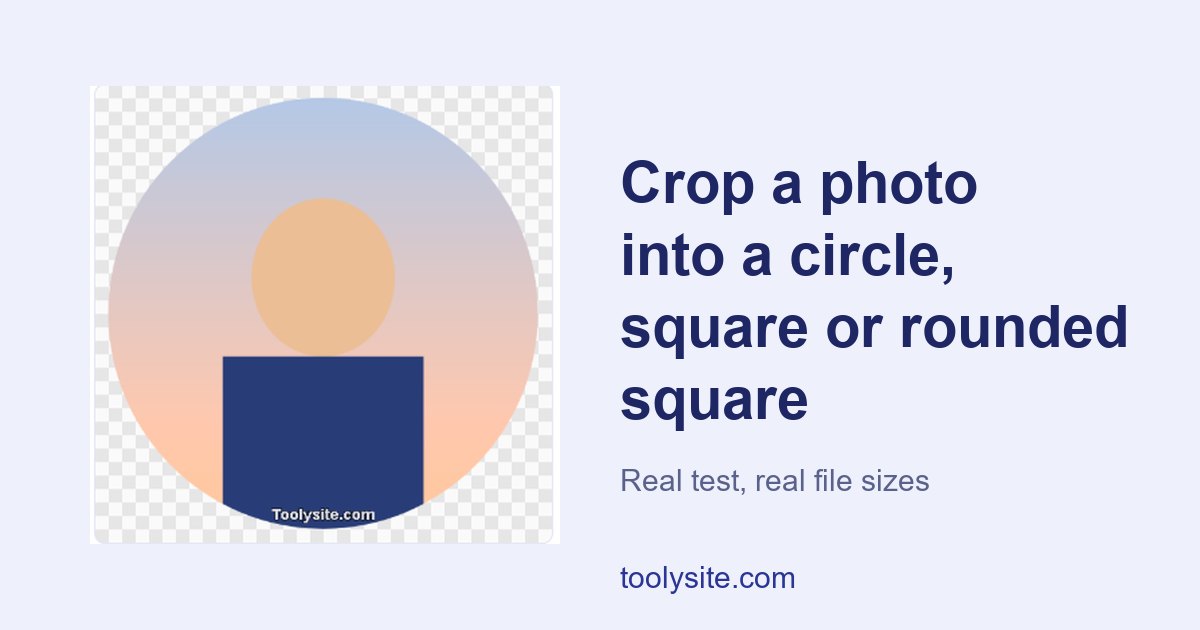
The test file was a 4000 x 3000 px JPG of 214.6 KB, and it is a drawing, not a photograph. I made it myself: a simple portrait-style drawing with a gradient background, so I could tell at a glance what got cropped. One warning before the numbers: because it is a flat-colour drawing, the file sizes below are much smaller than you will get from a real camera photo. A real photo, with more detail and noise, will usually give bigger PNG files, by how much depends on the picture. Use my numbers to compare settings against each other, not as a promise for your own picture.
| Shape | Size setting | Format | Result | File size |
|---|---|---|---|---|
| Circle | 512 px | PNG | 512 x 512 px | 29.9 KB |
| Circle | 512 px | JPG | 512 x 512 px | 15.8 KB |
| Rounded square | 1024 px | WebP | 1024 x 1024 px | 15.7 KB |
| Square | Largest square | PNG | 3000 x 3000 px | 316.4 KB |
| Circle | 2048 px | PNG | 2048 x 2048 px | 218.1 KB |
Two things stood out. "Largest square" gave 3000 x 3000 px, which is the shorter side of the original, so you never get a bigger square than your photo allows. And a circle at 2048 px was smaller in KB than the full square, because the corners are empty and compress to almost nothing.
How to crop an image into a circle, step by step
- Open the tool and drop your picture on the box, or click it to browse. JPG, PNG, WebP, GIF and BMP are accepted, within the file size limit shown on the page, which depends on your plan.
- Pick Circle, Rounded square or Square under Shape.
- Drag the picture to move it. The coloured outline shows the final shape and the faded part is what will be cut off. Use the zoom slider to get closer to a face or a logo.
- Choose the size (256, 512, 1024, 2048 px, or the largest square) and the format, then press Create.
- Check the preview and the file size shown under it, then press the download button.
If the framing goes wrong, the Reset position button puts the picture back where it started.
Circle, rounded square or square?
A circle is for avatars where you want the round shape baked into the file. A rounded square suits app-style icons and some logo slots. A plain square is the safest choice when you are not sure what the site does, because many sites apply their own mask on top of an upload. If a site is going to cut a circle out of your picture anyway, give it a square with the face centred and let it do the rounding.
Make image corners transparent: PNG, WebP or JPG
This is the part that trips people up. A circle is still a rectangular file, and the corners have to be something. In PNG and WebP they can be transparent, so the picture sits cleanly on any background. JPG cannot store transparency at all. If you save a circle as JPG, the tool fills the outside with a background colour you choose.
So if you want to crop a JPG into a circle with a white background, pick the JPG format and set the colour to white. If you want the corners to disappear on a coloured page, use PNG, or WebP when the site accepts it. WebP is worth trying because the files can be small: my 1024 px rounded-square WebP was 15.7 KB. Plenty of older forms still reject WebP, and then PNG is the answer.
Which size should you pick?
There is no single right answer, because every site wants something different, so check what yours asks for before you pick. As a rough guide from what the tool offers: 256 px is fine for small chat avatars and comment icons, 512 px is a common choice for profile photos, and 1024 or 2048 px is for when a site shows the picture large or you want a copy to keep. If you choose a size larger than the area you cropped, the picture is enlarged and will look soft, and the tool tells you when that happens.
Limits you should know about
- On a guest or free plan, a small "Toolysite.com" notice is added at the bottom of the picture. In my 512 px circle it sat inside the circle, near the bottom edge. If that spot matters, drag the picture so nothing important is there. Paid plans download without it; check the plans page for what is on offer.
- You get one crop per press of Create, so you work on one picture at a time.
- I tested with one picture on one computer. A very large photo on an older phone may be slower to process, and I have not measured that.
Questions people actually ask
How do I crop a picture into a circle without Photoshop?
Use a browser tool such as Circle and Square Crop: upload the picture, keep the Circle shape, drag and zoom until the right part is inside the outline, then press Create and download. Nothing needs installing.
How can I make a round profile picture with a transparent background?
Save it as PNG or WebP. Both keep the area outside the circle transparent. The checkerboard pattern you see in the preview is the transparent area.
Can I save a circle as JPG and get a white background?
Yes. Pick the JPG format and choose white as the colour. The corners are filled with it, because JPG has no transparency.
What is the difference between a circle crop and a rounded-square crop?
A circle cuts away the corners completely. A rounded square keeps most of the picture and only softens the corners, so more of your photo stays in the frame.
Why does my cropped picture look soft?
Usually because the size you chose is larger than the area you cropped from, so the picture was enlarged. Choose a smaller size, or zoom out so more of the original is used.
Before you upload
Open Circle and Square Crop with the photo you actually plan to use, make a 512 px PNG first, and compare it with the site's own avatar slot before you commit. If you also need a smaller file, the Image Compressor is on the same site, and the Image Cropper handles exact pixel crops. One honest gap in my test: I used a drawing, not a face photo, so try your own picture and judge the framing yourself.