Resize Image in KB Online: 20 KB, 50 KB, 100 KB
The upload bar fills up, you feel good about it, and then the portal says: photo must be less than 50 KB. The picture on your phone is almost a megabyte, and the form wants you to reduce the photo size to under 50 KB. You shrink it, try again, and now it says the picture is too small, or the wrong size in pixels, or just "invalid file".
Most of the grief with these forms comes from mixing up three different numbers: file size, pixel size and format. This guide fixes the first one with the Resize Image in KB tool, using real numbers from a real test, and then walks through why a form can still say no.
What we tested
We took a 4K screenshot (3840 x 2400 pixels, 861.7 KB) and asked the tool for three targets. A screenshot is a harsh test because thin text shows every bit of lost quality, which makes it easy to judge. Here is exactly what came back:
- Target 20 KB: 19,784 bytes (shown as 19.3 KB), 679 x 424 px, quality setting 31%
- Target 50 KB: 49,290 bytes (shown as 48.1 KB), 1118 x 698 px, quality setting 35%
- Target 100 KB: 98,956 bytes (shown as 96.6 KB), 1818 x 1136 px, quality setting 33%
One detail about the numbers: the tool shows sizes using 1,024 bytes per KB, so the 50 KB result of 49,290 bytes appears as 48.1 KB, while the limit you type is counted as 1,000 bytes per KB. In plain decimal terms that file is 49.3 KB. Either way it is under 50 KB.
Two things stand out. The tool says on its page that the result is always at or under your target, and all three of our results came in a little below it, which is what you want when a form states a maximum. And the picture got smaller in pixels too. The tool tells you when it does that, in a line under the result: "To reach this size the picture was also made smaller." That is the honest trade. Squeezing a 3840-pixel image into 50 KB by quality alone would leave a mess, so it also reduces the dimensions.
How to Resize and Compress an Image to a Specific Size
The page has no settings you need to hunt for. Processing time depends on your picture and your device.
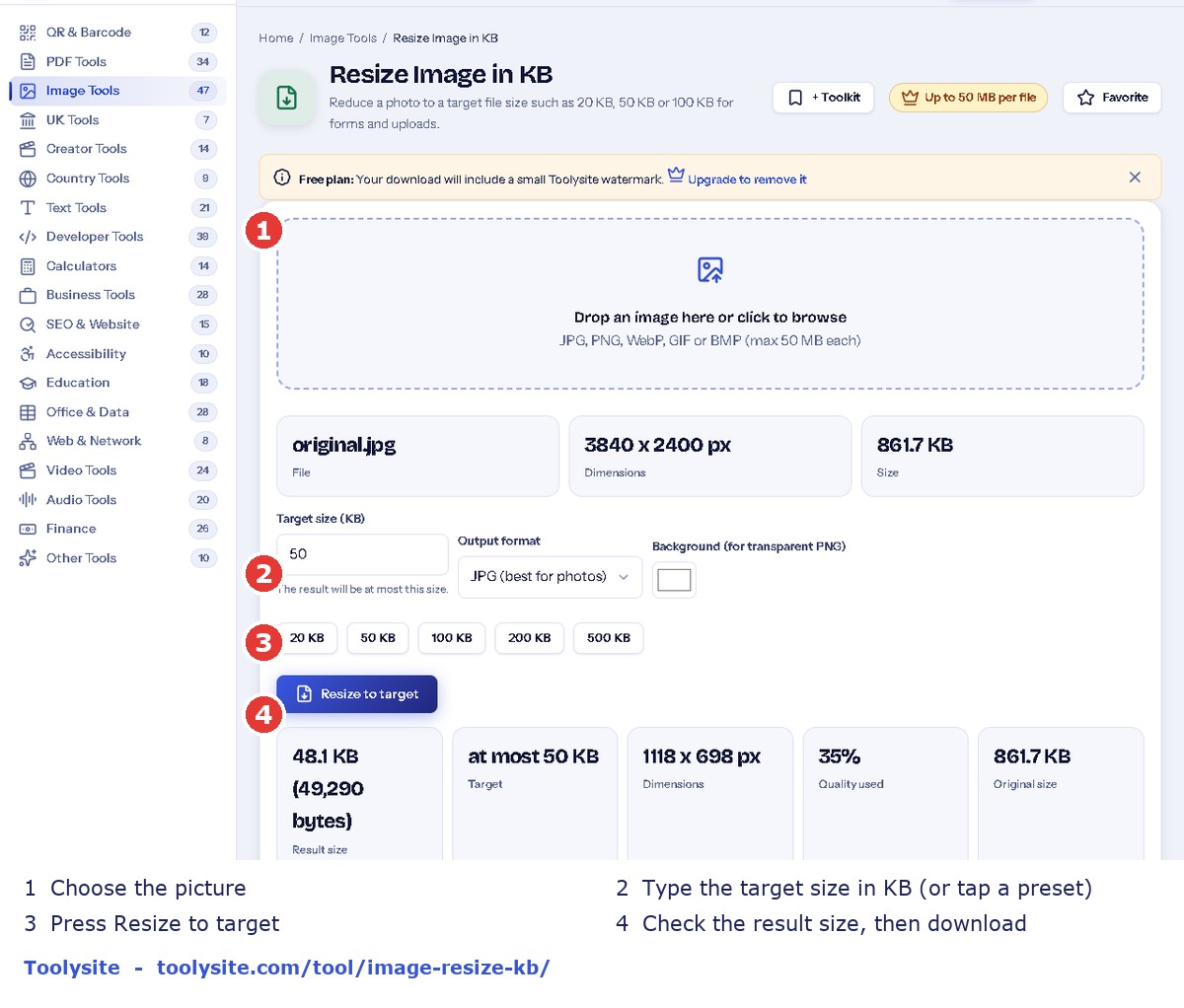
- Choose your picture, or drop it on the box. JPG, PNG, WebP, GIF and BMP all work, within the file size limit shown on the page.
- Type the target size in KB, or tap a preset: 20, 50, 100, 200 or 500.
- Leave the output as JPG for photographs. Pick WebP only if the form accepts it.
- Press Resize to target, look at the size and dimensions shown, then download.
A guest or free-plan download carries a small Toolysite watermark. Paid plans are planned to remove it, but they are not yet available for purchase.
How to Resize an Image to 20 KB, 50 KB or 100 KB
20 KB is the tight one. Our test came out at 679 x 424 pixels. That may be enough for a small thumbnail but it is limited for a detailed photograph, and a signature box may also have its own pixel size, so check that first. If your form wants 20 KB for a face photo, crop the picture to the face first so more of the budget goes to the part that matters.
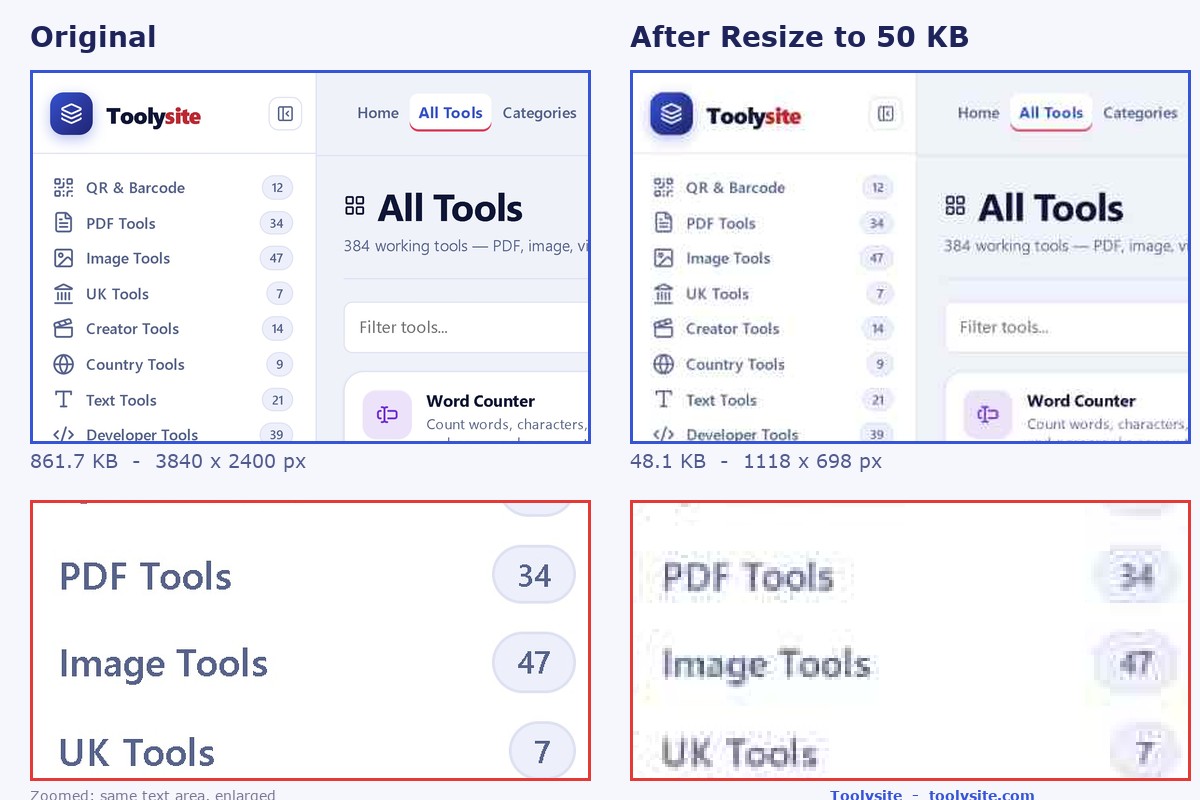
50 KB is a handy middle target for forms that allow files up to that size. At 1118 x 698 pixels the screenshot is still readable on screen, though you can see softness if you zoom in.
100 KB kept the most detail in our test. At 1818 x 1136 pixels the text stayed crisp enough to read comfortably.
Here is the 50 KB result next to the original, with the same patch of text zoomed in on both. The right side is softer, and that is the price of the size limit.
Why a form can still reject a picture that fits
File size is only one of the checks. When a portal says "invalid", look at these in order:
- Minimum size. Some forms want a file above a minimum, such as at least 10 KB, as well as below a maximum. A very small result can fail that.
- Pixel dimensions. Some portals ask for a fixed width and height. This tool aims at a file size, not an exact pixel size. For exact pixels, use Image Resizer first, then come back here for the KB limit.
- Format. If the form says JPG, send a JPG. Renaming a PNG to .jpg does not change what is inside the file.
- Background and framing. Photo forms often want a plain background and a centred face. Resizing does not change either.
We cannot tell you the current limit for any particular government, university or visa portal, because they change and differ between applications. Read the instructions on the upload page itself and treat the numbers here as examples.
Keeping the picture as sharp as possible
- Start from the biggest, cleanest original you have, not a screenshot of a photo that was already sent through a chat app.
- Crop away empty space before you resize. Fewer pixels to describe means better quality inside the same KB.
- Choose the target that the form really needs. Going from 100 KB to 50 KB for no reason costs detail.
- Always open the downloaded file once before uploading it.
For a wider look at balancing size and sharpness, our guide How to Reduce Image Size Without Making It Blurry goes deeper. Need the same trick for a document? See how to compress a PDF under 200 KB.
Questions people ask
Does "50 KB" mean the file must be exactly 50 KB?
Almost never. A limit like this is a maximum. A 48 KB file passes a 50 KB rule. Our tool always lands at or just under the number you type.
Will it make my picture bigger if I type a larger number?
No. It will not pad a small picture with empty data. If you need a larger file, start again from a higher-quality original.
Which is better for a small photo upload, JPG or PNG?
JPG is the usual choice for photographs because the quality can be tuned to hit a size. PNG suits sharp graphics and transparency. If you give this tool a PNG, it converts it to JPG or WebP. Follow whatever the portal names.
Can I do this on my phone?
Yes. Open the page in your phone browser, pick the photo from your gallery and use the same steps. Large originals can feel slower on an older phone, so give it a moment.
Why do the KB numbers sometimes differ from my computer's?
The tool counts the limit you type as 1,000 bytes per KB, but it shows the finished size using 1,024 bytes per KB. In our 50 KB test the file was 49,290 bytes: 48.1 KB on the tool's display and 49.3 KB in plain decimal. Either way it is under 50 KB. If a portal's counter disagrees with yours, trust the byte count in your file's properties.
Try it on your own picture
Open Resize Image in KB, drop in the file that keeps getting rejected, and see what it gives you. If it still bounces, work down the checklist above.